> ## Documentation Index
> Fetch the complete documentation index at: https://calcs.com/docs/llms.txt
> Use this file to discover all available pages before exploring further.
# Image Widget
> Display static images that can change based on conditions
The Image Widget is separate from the diagram widget and displays static images that can be changed based on certain conditions. These widgets act as narrative tools for end users to understand what is being designed and how inputs are expected to be used.
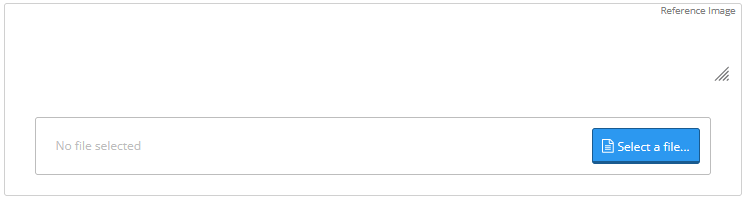
Images can also be added under widgets within the "Reference Image" section. Local files can be uploaded, but images from standards/references/guides should be avoided and should either be ignored or replicated.
## Example Code
```json theme={null}
{
"type": "sheetTemplateWidgets",
"attributes": {
"type": "image",
"label": "",
"visibleIf": "",
"referenceId": "image",
"equation": [
{
"condition": "@default",
"result": "\"imageID1\""
}
],
"image": {
"imageID1": {
"inline": "insert data uri"
}
},
"references": "",
"description": "",
"authorNotes": ""
}
}
```
## Parameters
Must be "image" - defines the widget type
The name of the image widget, appears as the widget label exposed to end users
An equation resulting in boolean true/false representing whether the field should be included in the sheet. If `visibleIf==false`, any fields referencing this field will error
Unique reference ID of the image widget
List of equation objects allowing images to be conditional on various events. The `"result"` must always point to the ID of images to be displayed when corresponding conditions are met
The image container containing a dictionary with image ID names as keys and actual images as data URIs. Data URI is placed as a value in the `"inline"` attribute
Standardized reference to the building code and major version from which the field is sourced/based upon
Minor explanation providing context, definitions, or clarifying information to the user about the field
Internal development notes never displayed to users
## Image Configuration
### Multiple Images
The image container can contain as many images as required by the equation:
```json theme={null}
"image": {
"imageID1": {
"inline": "data:image/svg+xml;base64,..."
},
"imageID2": {
"inline": "data:image/png;base64,..."
},
"imageID3": {
"inline": "data:image/svg+xml;base64,..."
}
}
```
### Conditional Display
Use equations to show different images based on conditions:
```json theme={null}
"equation": [
{
"condition": "input_type == 'beam'",
"result": "\"beam_diagram\""
},
{
"condition": "input_type == 'column'",
"result": "\"column_diagram\""
},
{
"condition": "@default",
"result": "\"default_image\""
}
]
```
## Data URI Conversion
To convert an SVG or other image to a data URI, use any data URI converter such as [duri.me](http://duri.me/).
### Supported Formats
* **SVG**: `data:image/svg+xml;base64,...`
* **PNG**: `data:image/png;base64,...`
* **JPEG**: `data:image/jpeg;base64,...`
## Best Practices
**Copyright Considerations**: Images from standards/references/guides should be avoided and should either be ignored or replicated to avoid copyright issues.
* Use descriptive image IDs that clearly indicate their purpose
* Keep image file sizes reasonable for web performance
* Provide alternative images for different input scenarios
* Use SVG format when possible for scalability
* Test image display across different screen sizes
* Include relevant descriptions for accessibility
## Common Use Cases
* **Load diagrams** - Show different loading conditions
* **Cross-section views** - Display section properties visually
* **Connection details** - Illustrate connection types
* **Boundary conditions** - Show support conditions
* **Material orientations** - Display fiber directions or grain orientation