> ## Documentation Index
> Fetch the complete documentation index at: https://calcs.com/docs/llms.txt
> Use this file to discover all available pages before exploring further.
# How to Force Update a Project
> Learn how to update existing projects to the latest calculation versions.
When Calcs.com releases new features (such as new input toggles, updated load combinations, or logic improvements), these changes are automatically applied to **new** calculators.
However, to protect your engineering work, **existing** projects are "version locked."
### Why are projects locked?
Usually, we will show you updates or prompt you to upgrade if there are changes in results that are critical, specifically if previous versions were found to be **over-conservative** or **under-conservative**.
But if there are no critical safety implications, projects remain "version locked" by default. **This is one additional layer to ensure that the calculations for a project you finished last month don't suddenly change their results overnight just because a new feature was added to the platform.**
If you would like to use a new feature (like a new deflection toggle) in an older, existing project, you can manually force the project to upgrade to the latest version using the steps below.
## How to force an update
To pull the latest calculation logic into an existing project:
Open the specific project you want to update.
Navigate to the **Project Details** page (the main list where you see all your calculations).
Look at your browser's address bar. Add `/upgrade` to the very end of the URL.
> **Example:** If your URL is `https://app.calcs.com/project/effad11a-0389...` Change it to: `https://app.calcs.com/project/effad11a-0389.../upgrade`
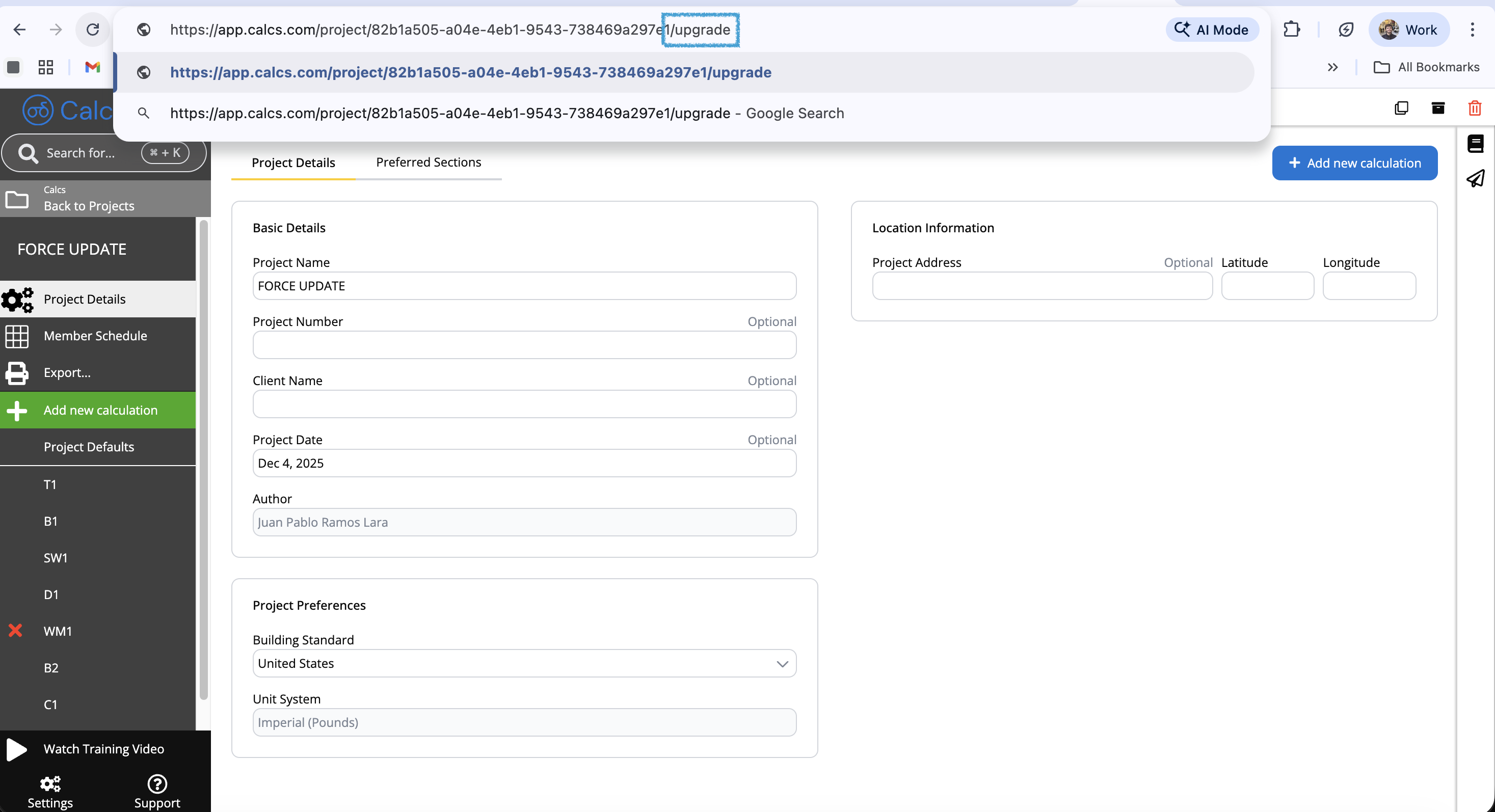 Press **Enter** on your keyboard to load the hidden upgrade page.
You will see an upgrade confirmation screen like this, select the calculators you want to **update**.
Press **Enter** on your keyboard to load the hidden upgrade page.
You will see an upgrade confirmation screen like this, select the calculators you want to **update**.
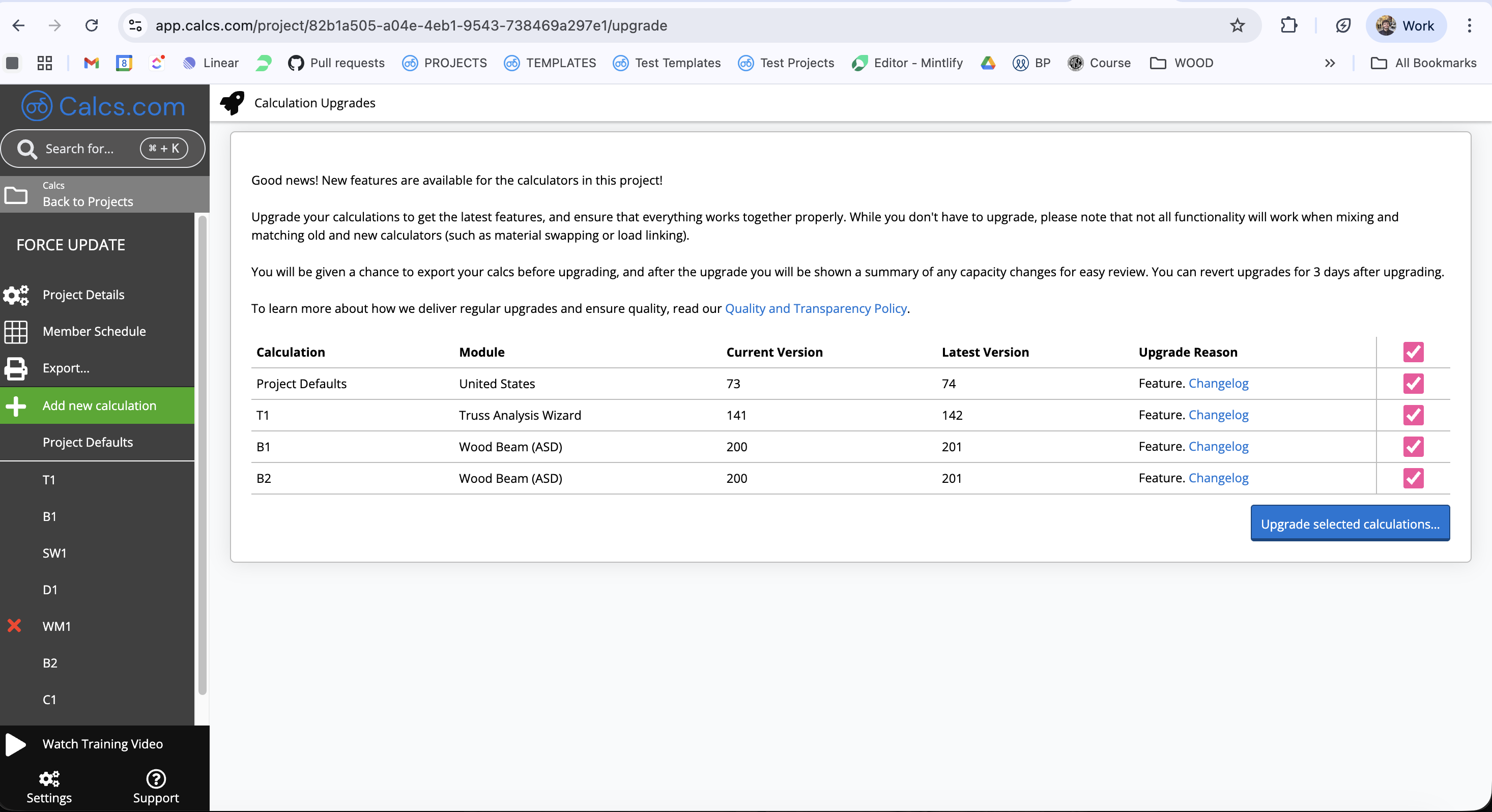 After selecting your calculators, a final window will appear. We recommend clicking **Export and Upgrade** so that you have a PDF record of the previous calculation version.
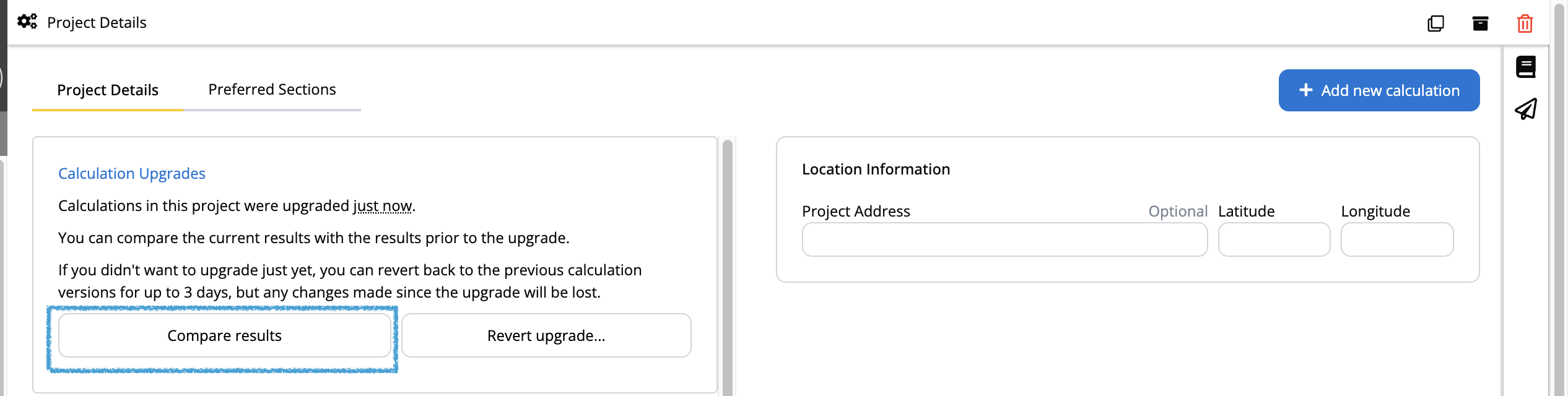
 Once the upgrade is complete, a **Compare Results** button will appear on the Project Details page.
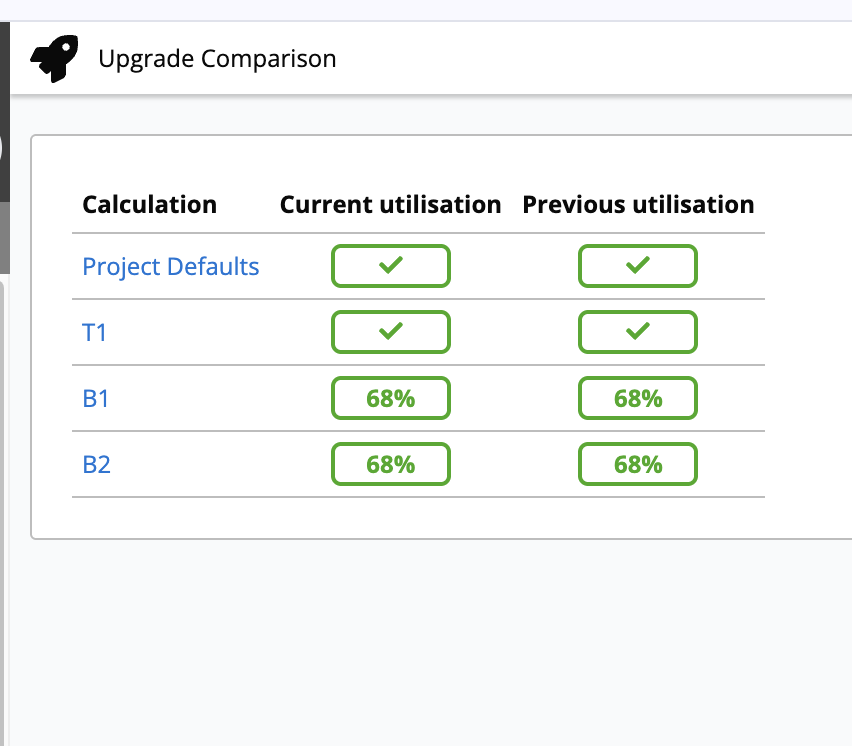
 If you click on it, you will see a comparison of the current and previous utilization checks. You should generally expect **no increase in utilization**, as an increase would mean the demand increased or the capacity decreased. We take the responsibility of our calculations very seriously, and scenarios like that rarely happen.
 ## Important Considerations
**Review your results:** Forcing an update applies the newest calculation logic to **all** calculators within that project. While this gives you access to new features, it may also slightly alter results in other calculations if standard codes or assumptions have been updated since you created the project. Always review your critical outputs after an upgrade.
## Important Considerations
**Review your results:** Forcing an update applies the newest calculation logic to **all** calculators within that project. While this gives you access to new features, it may also slightly alter results in other calculations if standard codes or assumptions have been updated since you created the project. Always review your critical outputs after an upgrade.