> ## Documentation Index
> Fetch the complete documentation index at: https://calcs.com/docs/llms.txt
> Use this file to discover all available pages before exploring further.
# Copying, Reordering and Grouping Calculations
> Copying, Reordering and Grouping Calculations
Calcs.com makes it easy to copy and group calculations in your projects.
## Reordering and grouping calculations
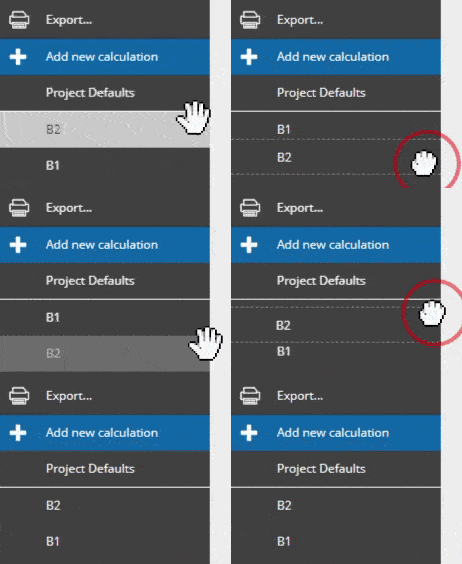
You can re-order sheets in the left sidebar by hovering over the calculation you want to re-order, clicking it, and dragging it to the position on the list you would like.
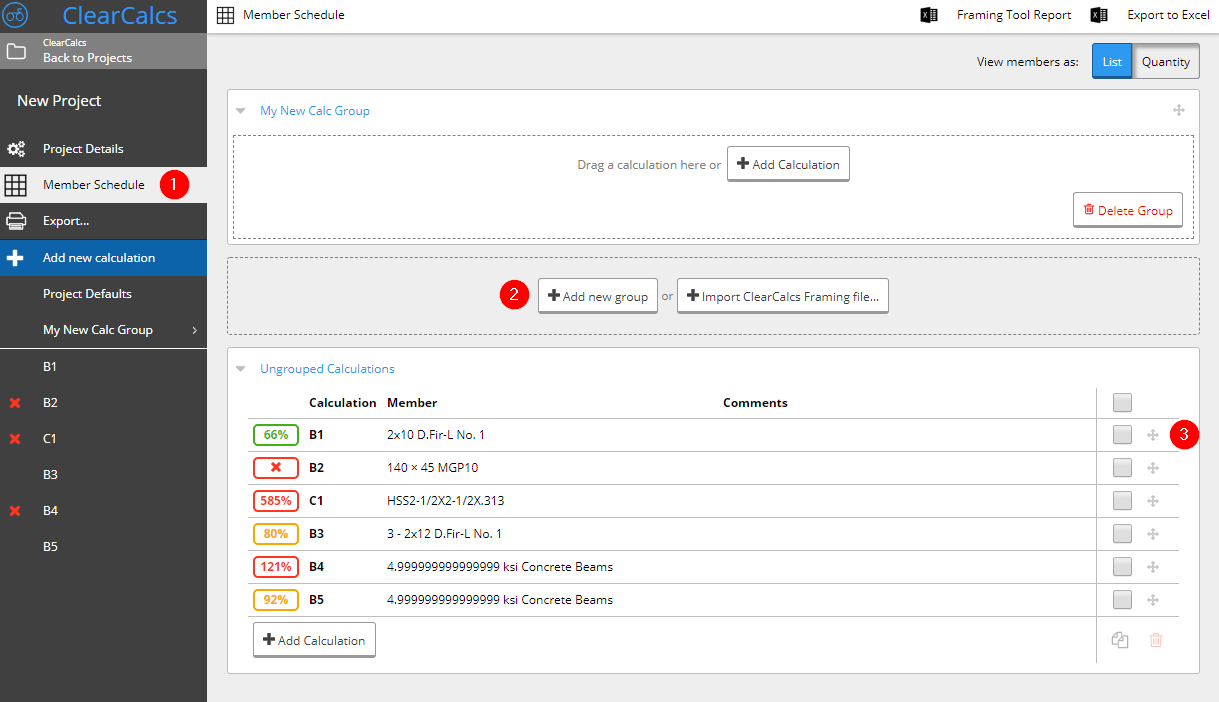
 You can create new calculation groups by going to the 'Member Schedule' tab (1 in the image below) in the left hand sidebar of a project. Here you can add a new calculation group (2) and then click to drag calculations into it (3).
 ## **Copying calculations**
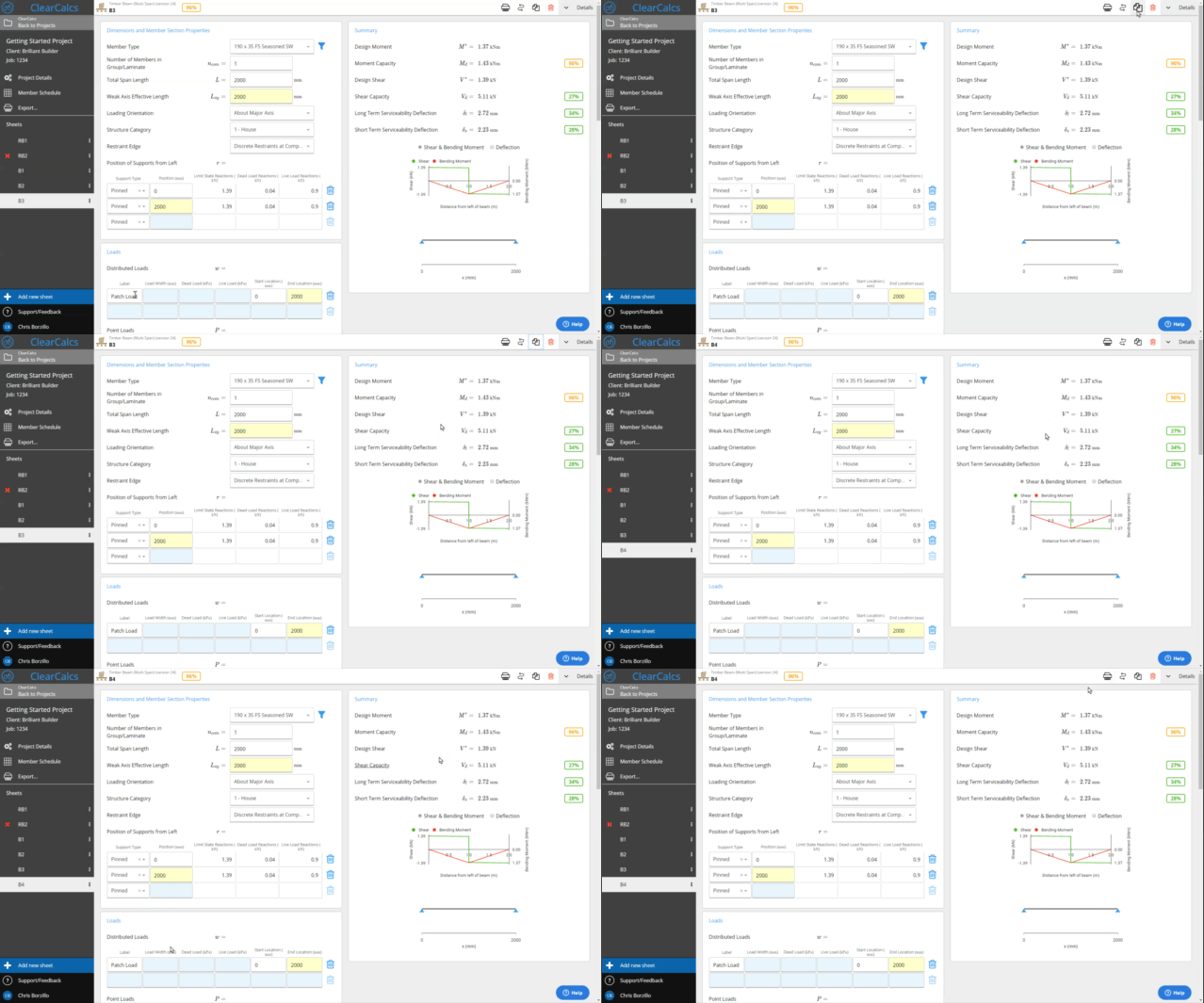
The actions tab includes useful features including sheet duplication. Duplicating a sheet will load the new sheet and automatically adopt the next number as its subject (eg. RB1 will duplicate to RB2).
## **Copying calculations**
The actions tab includes useful features including sheet duplication. Duplicating a sheet will load the new sheet and automatically adopt the next number as its subject (eg. RB1 will duplicate to RB2).