

How to Specify Preferred Sections
Adding Preferred Sections
Preferred sections can be added to your project from the Project Details screen which is the first screen you’ll see when you create a new project or click an existing project.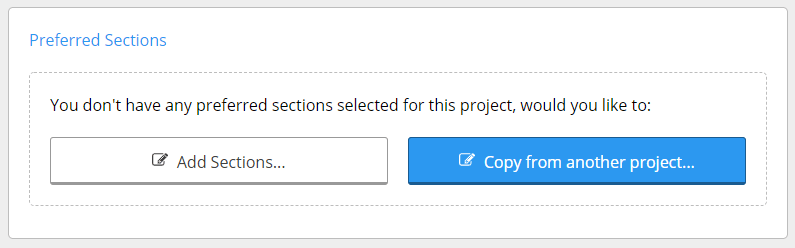
Editing Preferred Sections
To edit existing preferred sections, click the edit button in the project details page to add and remove the sections you have specified.Using Preferred Sections
Preferred sections can be used two ways:- Via the member selector - whenever you open the member selector, your preferred sections will always appear at the top with a star by default.
- Via AutoSize - whenever you click the magic wand button AutoSize will run and automatically select the most optimal section from your preferred list.
How to Use AutoSize
AutoSize eliminates trial and error member selection by automatically choosing the most optimal section from your preferred sections list.
How AutoSize chooses a section (and why it’s not always 100% utilization)
A common question is why AutoSize picked a section that clears its checks at, say, 97% instead of landing exactly on 100%, and whether it’s simply choosing the lightest section by weight. It isn’t. AutoSize checks every applicable limit state at once (bending, shear, deflection, combined actions, and any others that apply to the current module), and it only has the sections in your Preferred Sections list to choose from. From those, it selects the smallest section that passes every check, not the lightest by weight and not the one that gets closest to 100% on any single check. Because the sections in your preferred list come in fixed, discrete increments (the next size up is a real catalog member, not a continuous value), the smallest passing section usually leaves some margin on whichever check governs. That’s why the reported utilization on the governing check is often somewhere below 100%: the next size down would fail one of the checks, so AutoSize has to step up to the next available section. AutoSize only compares sections within the current material and module. As noted above, if you want to consider a different material (for example, switching from timber to steel), use the change material function first and then re-run AutoSize.Bonus Round: Saving Client Preferences
Architects and builders often have their preferences for what materials they like to work with, or are available in there region. It can be hard to remember what these are, especially in larger organizations with many engineers working across clients. Client preferences can easily be saved and shared using preferred sections by creating empty projects named after clients with their preferred sections specified. In this way, engineers can easily create a new project, click to copy preferred sections from existing, and look up the client project they want to copy from.Frequently asked questions
Who can set preferred sections?
Who can set preferred sections?
Preferred sections are managed by account administrators. Engineers can view preferred sections but cannot change the organization-level list.
Can we have different preferred sections for different project types?
Can we have different preferred sections for different project types?
The current release supports a single preferred section library per organization. Project-type segmentation is on the product roadmap.
In this section
Choose Preferred Sections
Pick the sections you use most in Project details so they appear at the top of your calculators.
Replace a Preferred Section Removed from the Database
What happens when a section is withdrawn from the database, and what to do with flagged calculations.