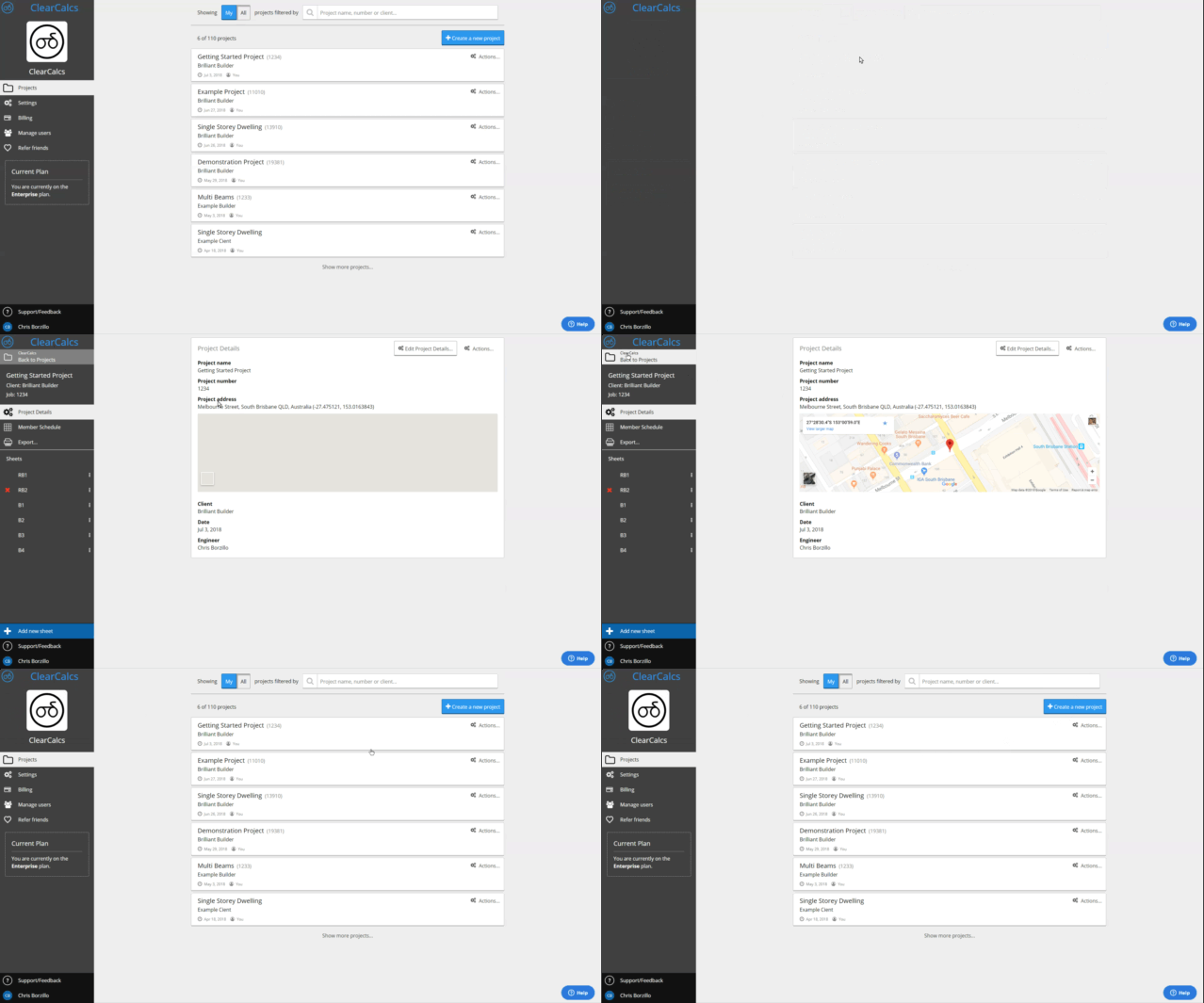

Calcs.com works by grouping sets of calculations (for example beams and columns) into projects tied to any name, job number, or address you like, so they’re easy to find and manage. Projects hold all the calculation sheets for a given job. Each time you log into Calcs.com, you’ll be shown a list of projects that belong to you on the left side of the screen, as well as a button to create a new project. You can duplicate, archive, and delete projects from this list, or click the card to enter a project. If you’d like to go back to the project list, just click the Calcs.com logo to go home. Calcs.com.gif To create a new project, just click the big blue ‘Create a New Project’ button on the homescreen. This will take you to the project details screen where you can specify a project name and address and start creating calculations. On the Project Details screen, you’ll also see boxes for project defaults and preferred sections - these are great time saving features, but we’ll worry about them later! Once you’ve created your first project and given it a name, you’re ready to create your first calculation!

Sharing with people outside your organization

Access in Calcs.com is set at the organization level, not per project. There isn’t a built-in way to share a single project with someone outside your organization while restricting their access to everything else. This applies even if your collaborator already has their own Calcs.com account with another organization. You have two options today:
  1. Add the collaborator as a member of your organization. They can then open, edit and run calculations in your projects. Because access is organization-level, they’ll have access to all projects in your organization, not just the one you want to share. See Add Users to Your Organization.
  2. Export the calculation as a PDF. Your collaborator can review the output, but they can’t interact with the live calculation or change any inputs. See Export a Single Calculation to PDF or Export a Project to PDF.
Adding someone to your organization gives them the same project visibility as your other members. Check User Permissions before you invite an external collaborator.