Imperial units
In Calcs.com there is a designated table for beam supports under ‘Key Properties’ section as shown below.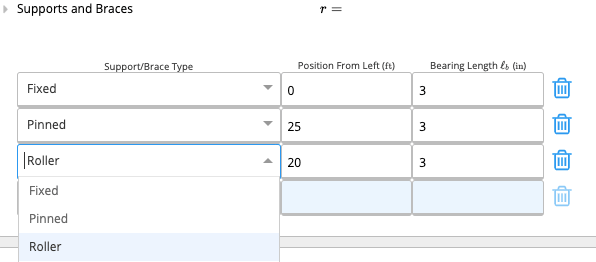
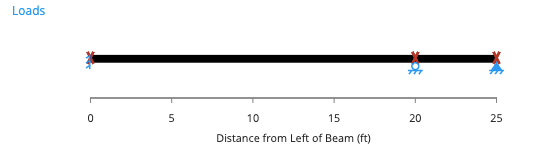
Input Parameters
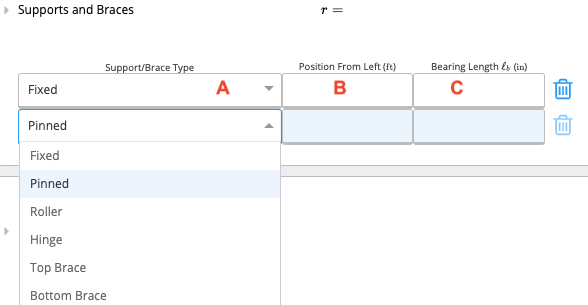
A. Support Type
There are three basic types of supports. Each support type restricts the movement of the beam in at least one direction. There are reaction forces at the supports in directions in which the movement has been restricted. For better understanding, refer to the table below.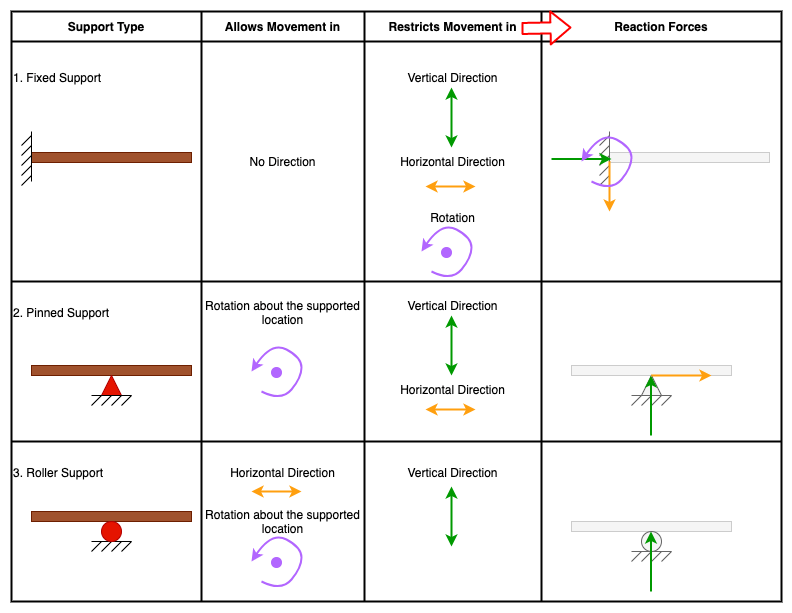
B. Position
Position refers to the distance between the particular support and the left end of the beam. This parameter needs to be in feet, alternatively, conversion formulae can also be entered into the cell for convenience (similar to Excel).C. Length of Bearing
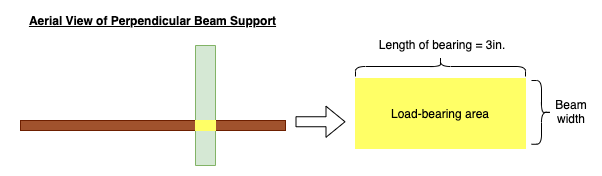
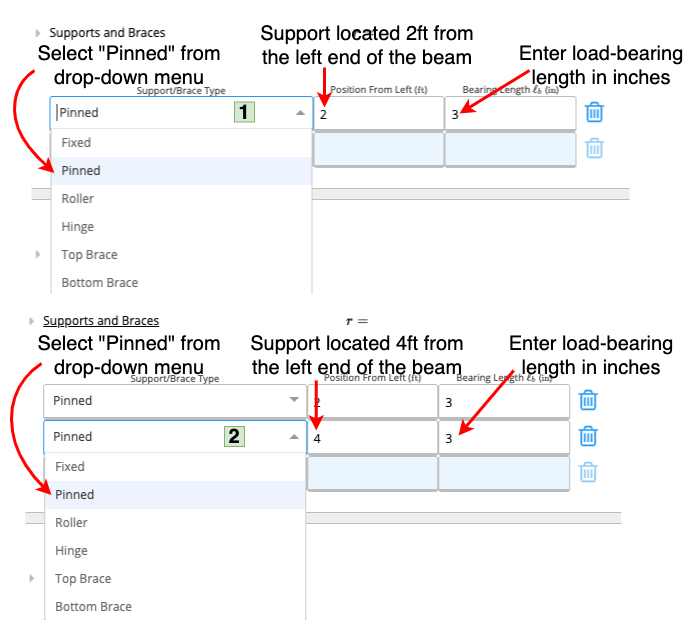
This column is only present in some of our calculators as it is not relevant to all beams. The length of bearing is a measurable dimension that can be found in the load-bearing area. The load-bearing area is the area that comes into direct physical contact with the support. This area transfers to load from the beam to the support. The load-bearing area can only be observed in beams that are supported on the bottom surface by perpendicular beams, brackets or other connectors with a measurable contact area. The width of the load-bearing area is usually the width of the beam. The length of the load-bearing area can simply be measured or calculated by dividing the load-bearing area by the width of the beam (given that width of the beam = width of the load-bearing area). This parameter needs to be in inches, alternatively, conversion formulae can also be entered into the cell for convenience (similar to Excel). See Example 4, for a worked-out example on how to input load-bearing lengths.Example 1
Task
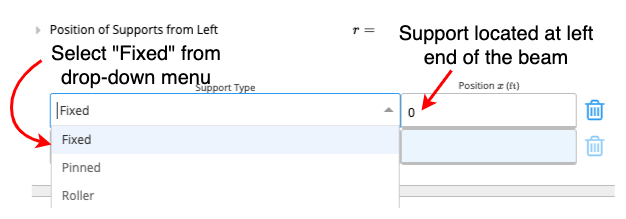
Input supports for a 4ft long right cantilever beam. (assume fixed support is at the left end)Solution
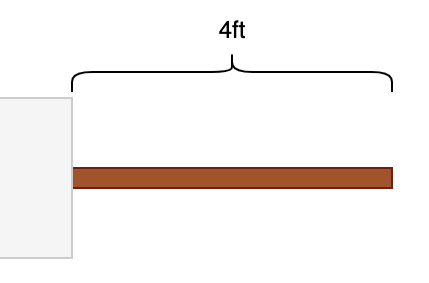
Example 2
Task
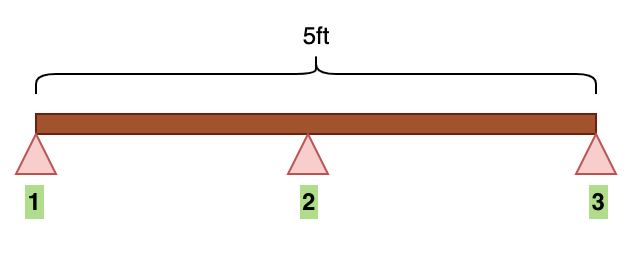
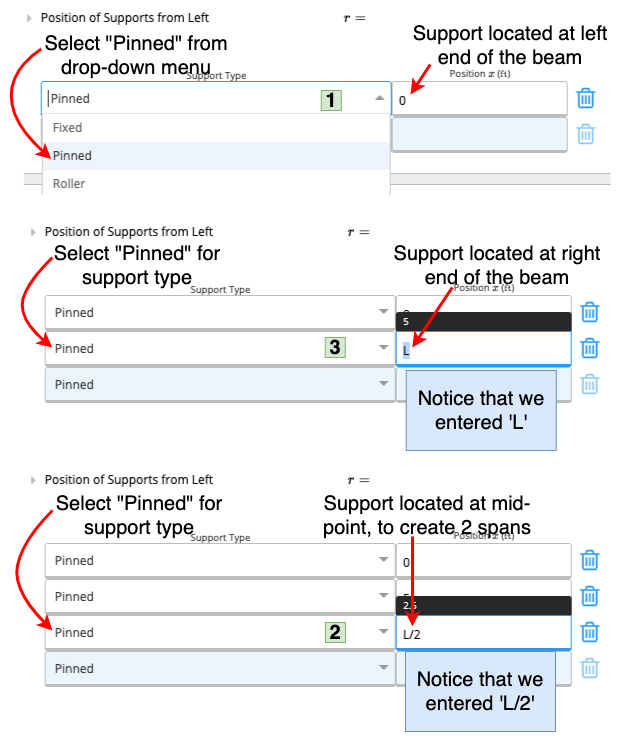
Input supports for a 5ft long two-span beam with pinned supports. (assume there will be supports at both ends)Solution
Example 3
Task
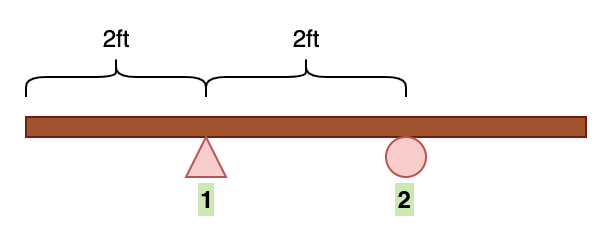
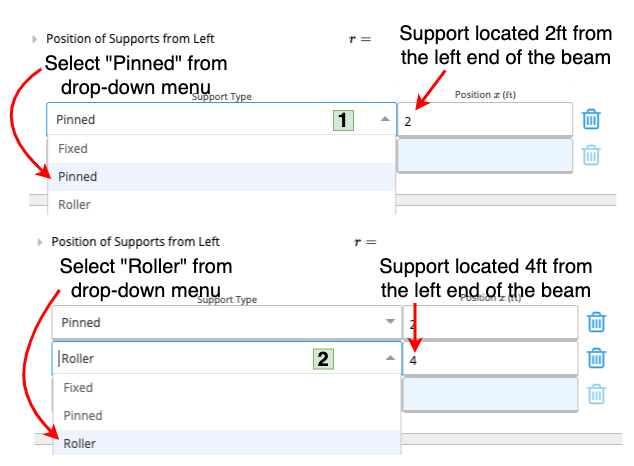
Input supports for double cantilever beam (6ft in total length) with a pinned support at 2ft and a roller support at 4ft.Solution
Example 4
Task
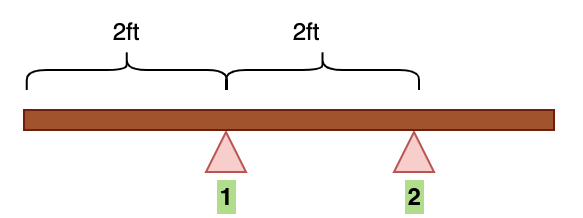
Input supports for a 5ft long joist with perpendicular girder supports at 2ft and 4ft. The load-bearing length is 3 inches each.Solution
Frequently asked questions
Which is the weakest kind of support?
Which is the weakest kind of support?
The weakest kind of support is simple support (roller support), as it provides no restraint for a structure.
Metric units
In Calcs.com there is a designated table for beam supports under ‘Key Properties’ section as shown below.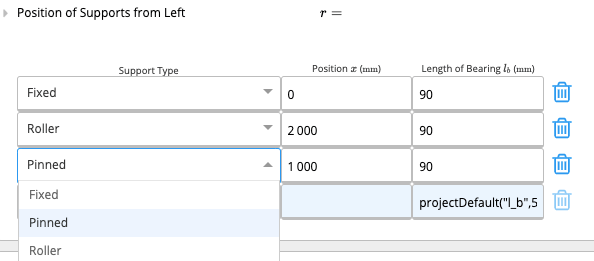
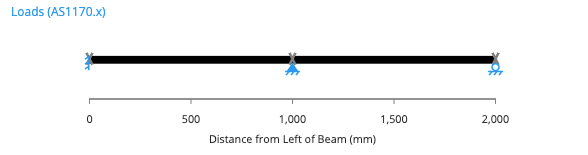
Input Parameters
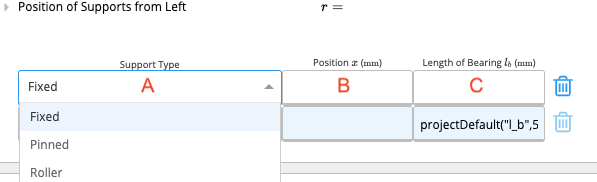
A. Support Type
There are three basic types of supports. Each support type restricts the movement of the beam in at least one direction. There are reaction forces at the supports in directions in which the movement has been restricted. For better understanding, refer to the table below.B. Position
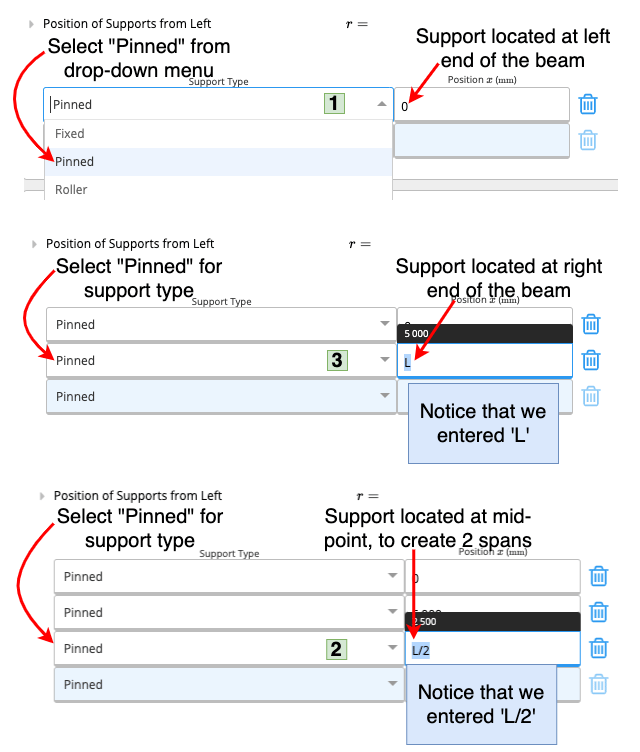
Position refers to the distance between the particular support and the left end of the beam. This parameter needs to be in millimeters, alternatively, conversion formulae can also be entered into the cell for convenience (similar to Excel).C. Length of Bearing
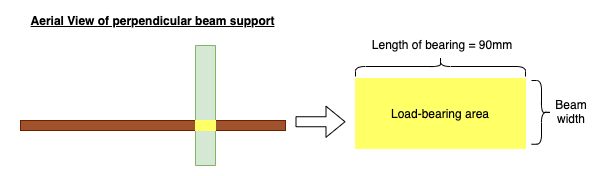
This column is only present in some of our calculators as it is not relevant to all beams. The length of bearing is a measurable dimension that can be found in the load-bearing area. The load-bearing area is the area that comes into direct physical contact with the support. This area transfers to load from the beam to the support. The load-bearing area can only be observed in beams that are supported on the bottom surface by perpendicular beams, brackets or other connectors with a measurable contact area. The width of the load-bearing area is usually the width of the beam. The length of the load-bearing area can simply be measured or calculated by dividing the load-bearing area by the width of the beam (given that width of the beam = width of the load-bearing area). This parameter needs to be in millimeters, alternatively, conversion formulae can also be entered into the cell for convenience (similar to Excel). See Example 4, for a worked-out example on how to input load-bearing lengths.Example 1
Task
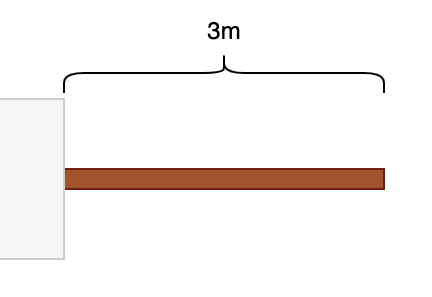
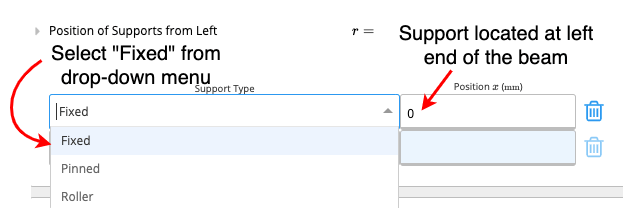
Input supports for a 3m long right cantilever beam. (assume support is at the left end)Solution
Example 2
Task
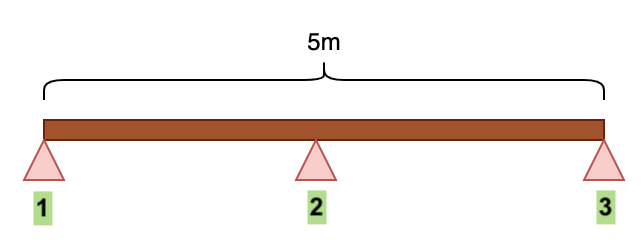
Input supports for a 5m long two-span beam with pinned supports.Solution
Example 3
Task
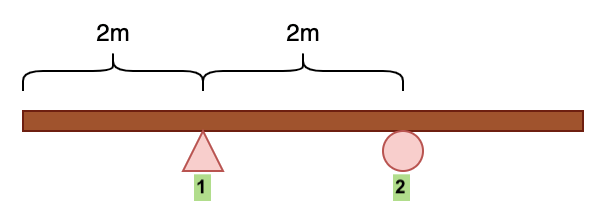
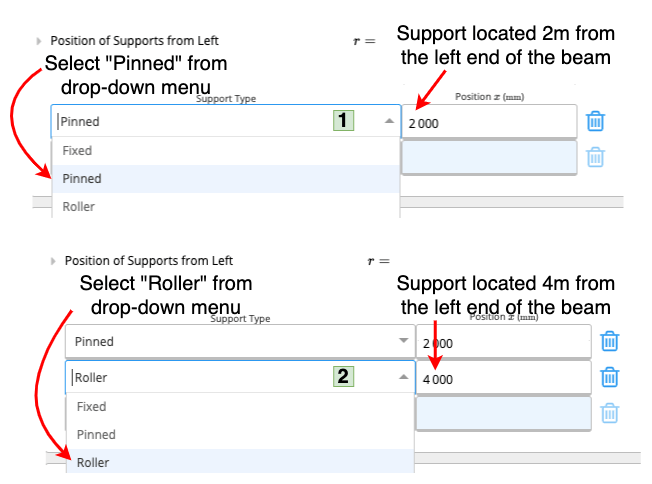
Input supports for double cantilever beam (6m in total length) with a pinned support at 2m and a roller support at 4m.Solution
Example 4
Task
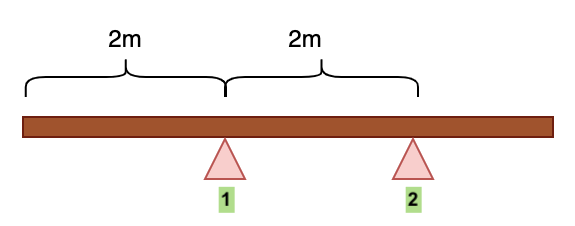
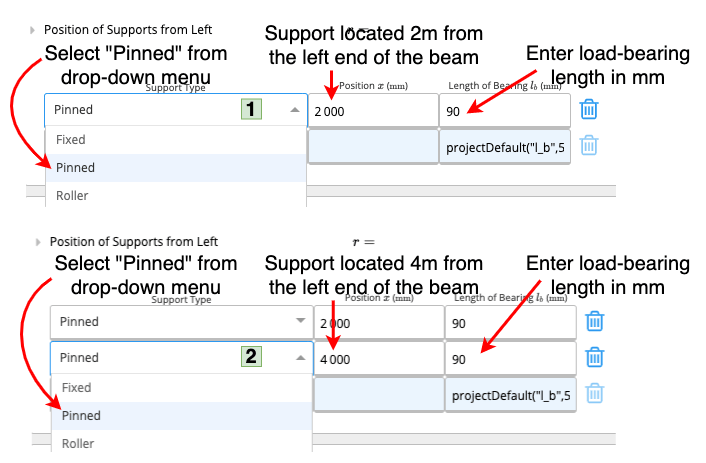
Input supports for a 5m long joist with perpendicular bearer supports at 2m and 4m. The load-bearing length is 90mm each.Solution