Inputs in Our Calculators
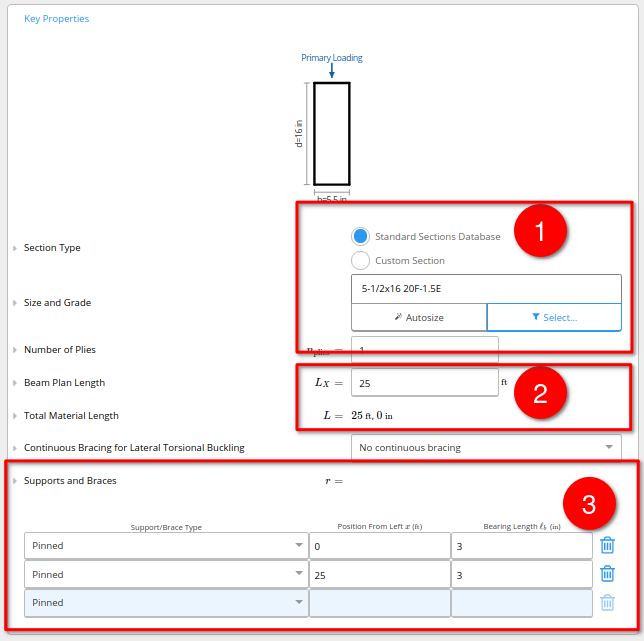
In all of our beam and column calculators, the only truly mandatory inputs are:- Member Selection: Which section size or shape you wish to use in design. Note that we have some powerful features, including our Member Selector and Autosize, which can make this a breeze, especially if you select your selection last after inputting everything else.
- Member Length: Total material length of your beam, or height of your column
- Support Locations: For a beam, where are the walls, columns, or girders holding the beam up? For a column, is it multiple stories tall (a support should be added at each)? See our descriptions of what all the support types are, in either metric units or Imperial units.
- Loads: We’ll put on some default loads that are typical for the type of beam or column you select, but you might have higher loads for your structure’s usage (such as in bathrooms or hallways), or you might have another member that’s supported by this one (for which you can create a load link). Just scroll a short ways down the page and you’ll see all the types of loads you can add - including point loads or distributed loads in metric units or Imperial units.
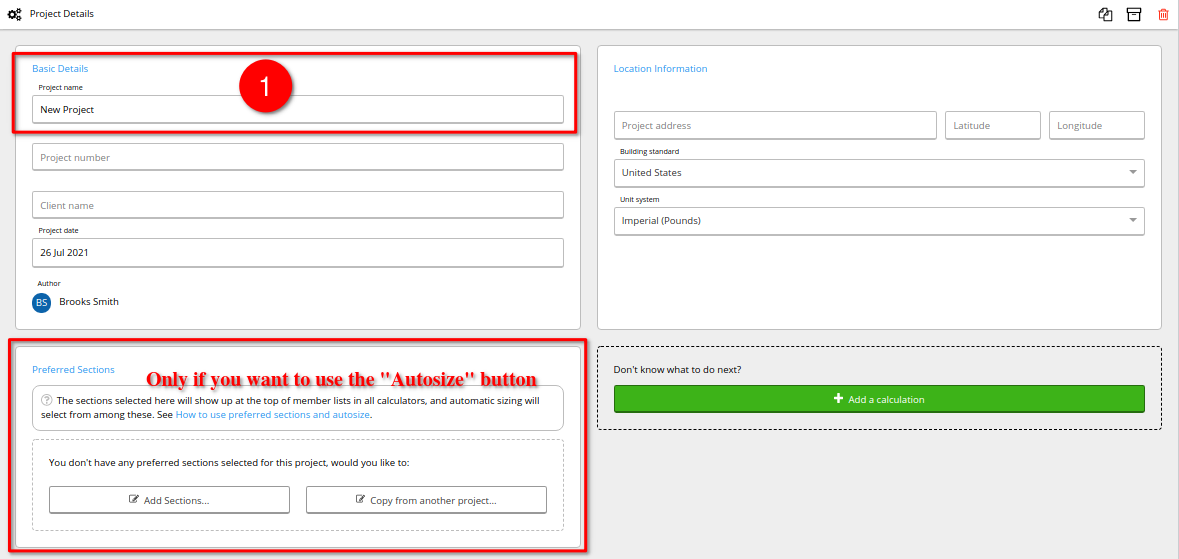
Inputs for your Project
When you first create a project - before you even open up one of our design calculators - you might notice that there are several inputs available, involving project names, addresses, Preferred Sections, etc. The ONLY input here that’s required is:- Project Name: Uniquely identifies the project you’re working on, and allows you to search for it later