

- A Remote widget that runs the section properties solver (this turns your rectangle definition into real drawing data).
- A Diagram widget with a Cross section layer (this draws what the first step returned).
At a glance: who does what?
Remote is the step that computes the outline. Diagram is the viewer on the sheet.
If you only put the rectangle definition on the diagram and skip the remote, the cross-section view has nothing to draw (no
lines yet), so the plot can stay empty.
Example: how to set up a rectangle
Here is a typical setup so the user enters width and length, and the sheet shows a rectangular cross-section plot.1
1. Add two inputs and give them reference IDs
For example, add an input for width and one for length (or whatever you want to label them).Give each widget a clear reference ID you will use in math, for example 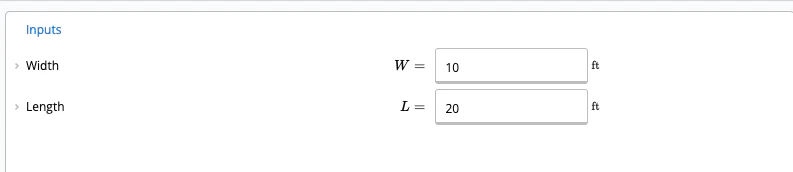
W and L. Those are the names your equations will see (the symbol shown in the UI can still be a longer label if you prefer).2
2. Add a Remote widget and pick the section properties solver
- Solver:
sectionProperties - Reference ID: pick one name and stick to it everywhere below, for example
xsect
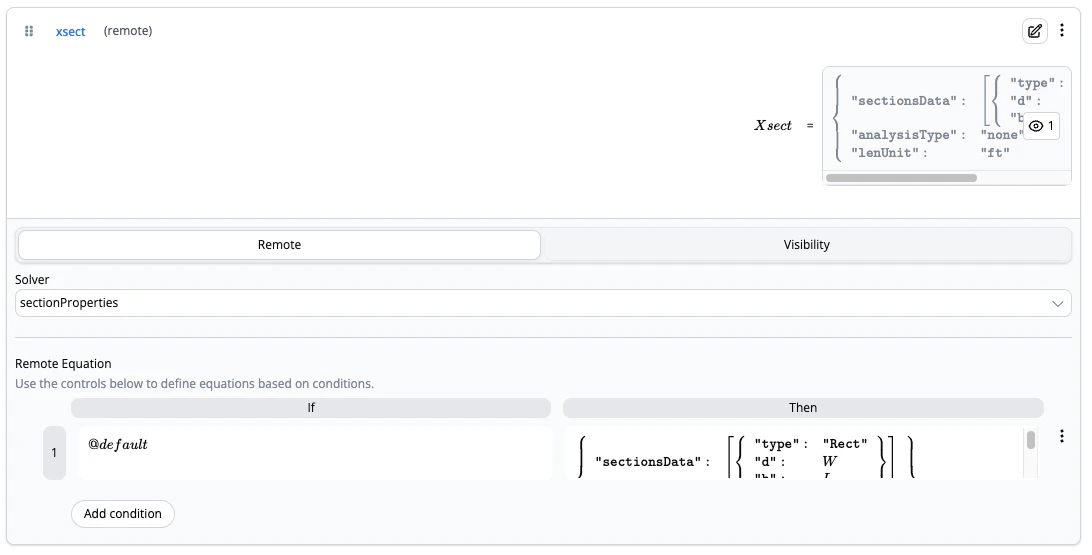
@default), set the result to an object that:- describes the rectangle in
sectionsData, using your inputs (depth/width for aRectaredandb, match them to your width/length); - sets
lenUnitto match your inputs (for example"ft"if the user types feet); - for outline only, you can set
analysisTypetononeso the solver just prepares the drawing, not a full property run.
result (simplified):W and L to match your actual reference IDs and your unit string if different.3
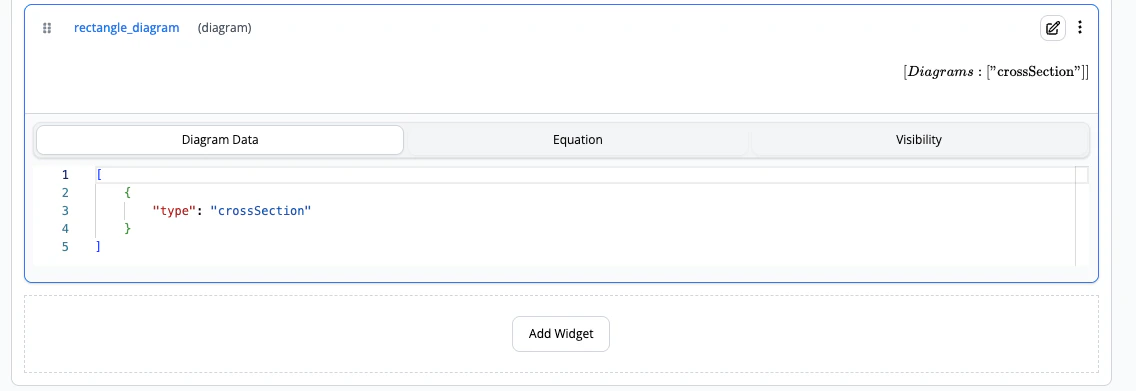
3. Add a Diagram widget with Cross section
- Add a Diagram from the widget palette.
- In the diagram settings, set the type to cross section (one layer).
@default), the result should read from the remote you named in step 2, not re-define the rectangle. Point at the solved outline: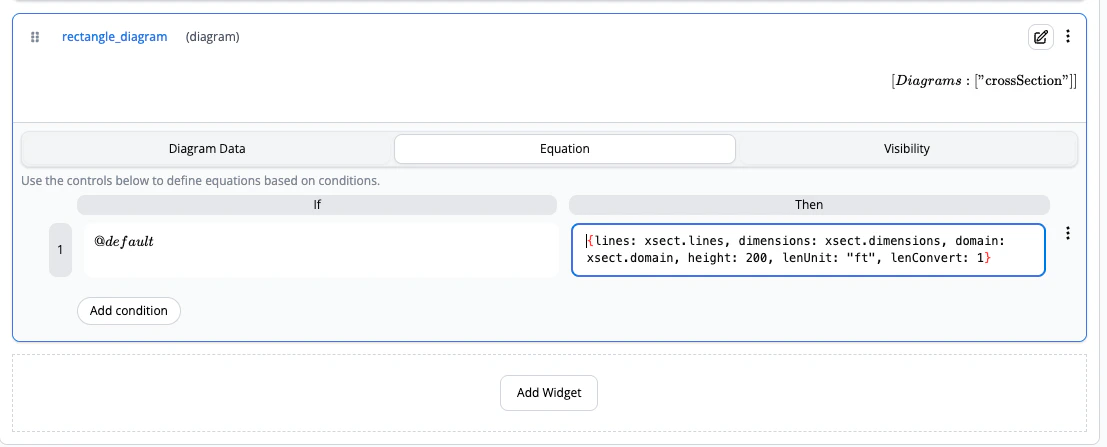
xsect in xsect.lines) must be the same reference ID you gave the remote in step 2. If the remote is xsect, use xsect.lines, and so on. If you named the remote myShape, use myShape.lines, and so on.4
4. Preview the template
Change the width and length. The remote re-runs, then the diagram updates. If the plot is blank, double-check the names in step 3 and that the remote’s equation is not empty (see Troubleshooting).
A rectangle in
sectionsData often uses the Rect type with two side lengths, d and b. You decide which user input maps to which, for example width to d and length to b, as long as it matches your plan or section convention.Why you can’t do it in one diagram step
The cross section layer on a diagram is a display. It expects the same data our solvers use for a finished outline: polylines (lines), a bounding area (domain), and optional dimensions.
That data is produced when the section properties solver ingests your sectionsData. The diagram does not re-run that full process inside the widget, so the remote step is required to go from “I want a Rect” to “here are the lines to draw”.
If your section is already solved somewhere else
Some modules already feed a solved section (for example a linked or database member). Then the diagram might only reference an existing object (e.g.xsect.lines with xsect defined earlier). The rule is unchanged: the diagram always plots solved lines and domain, not the raw sectionsData on its own.
Troubleshooting (builder)
“Empty equation result on row 1”
“Empty equation result on row 1”
The result on that equation row is actually blank. Fix the row so it has a full result string, or remove unused rows. This is a validation message, not a complaint about the geometry yet.
The plot is still blank
The plot is still blank
- Confirm the Remote is saved with
sectionProperties, non-emptyresult, and a reference ID. - In the Diagram equation, use that exact name:
myRef.lines,myRef.dimensions,myRef.domain(e.g.xsect.linesif the remote isxsect). - Check
lenUnitandlenConvertmatch the units you use in inputs.
“Unknown” or invalid references in math
“Unknown” or invalid references in math
Equations use reference IDs (e.g.
W, L, xsect), the names you set in the builder, not a fake @ syntax. Mismatches here fail when the sheet evaluates, not as “empty result.”See also
Remote widget
Solvers, payloads, and
referenceIdDiagram widget
Legacy diagrams, including cross sections
End users of a published calc usually only see the inputs and the picture. The remote and diagram split is mainly for template authors setting this up in Calcs Builder.