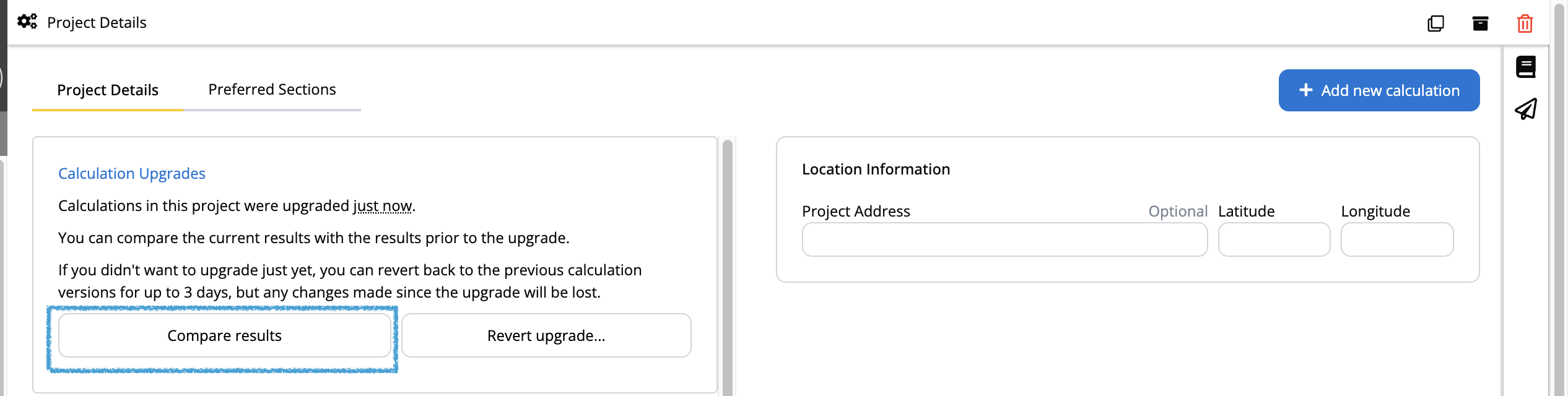
Why are projects locked?
Usually, we will show you updates or prompt you to upgrade if there are changes in results that are critical, specifically if previous versions were found to be over-conservative or under-conservative. But if there are no critical safety implications, projects remain “version locked” by default. This is one additional layer to ensure that the calculations for a project you finished last month don’t suddenly change their results overnight just because a new feature was added to the platform. If you would like to use a new feature (like a new deflection toggle) in an older, existing project, you can manually force the project to upgrade to the latest version using the steps below.How to force an update
To pull the latest calculation logic into an existing project:1
Open the project
Open the specific project you want to update.
2
Navigate to Project Details
Navigate to the Project Details page (the main list where you see all your calculations).
3
Modify the URL
Look at your browser’s address bar. Add 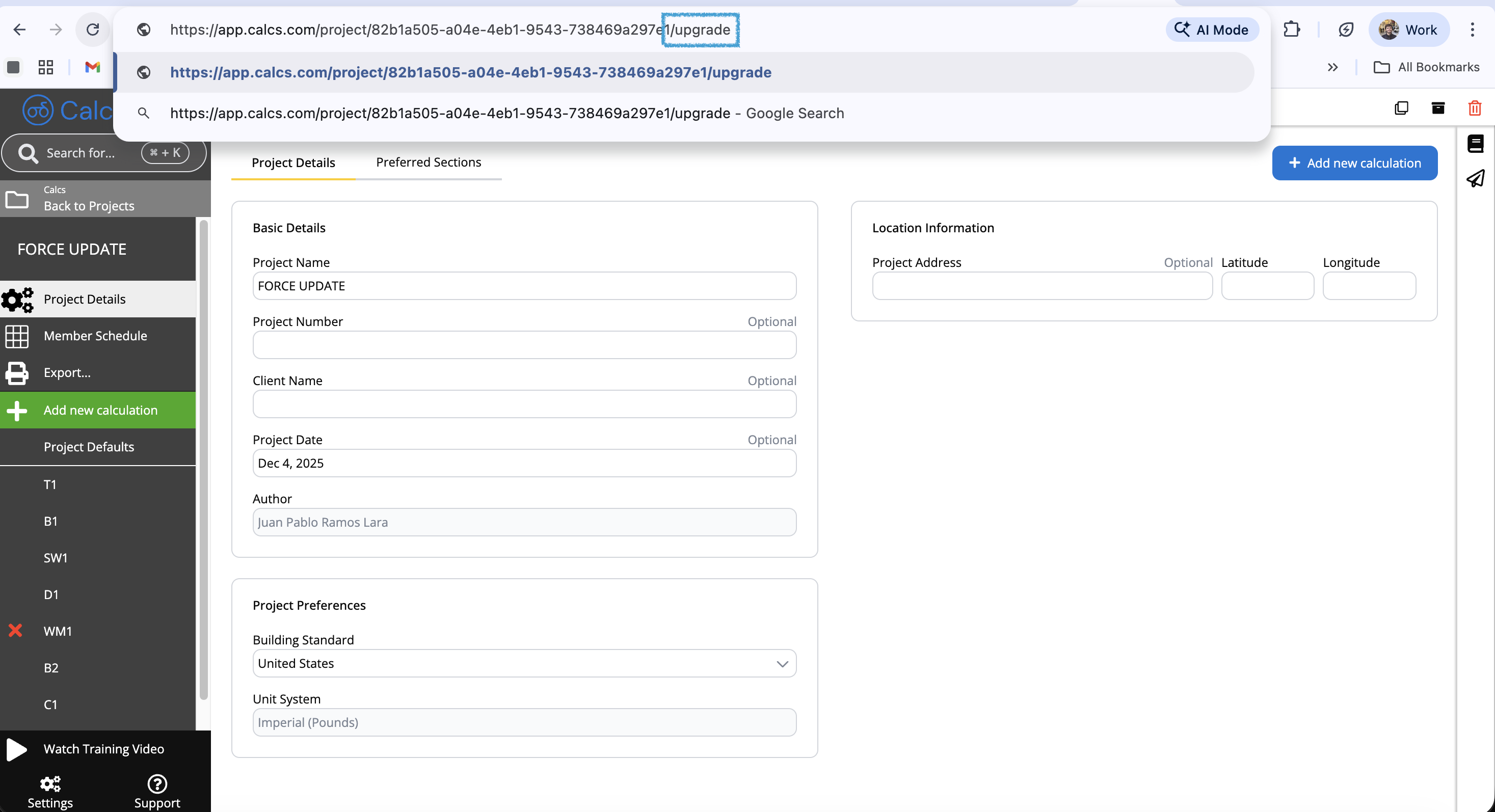
/upgrade to the very end of the URL.Example: If your URL ishttps://app.calcs.com/project/effad11a-0389...Change it to:https://app.calcs.com/project/effad11a-0389.../upgrade
4
Load the upgrade page
Press Enter on your keyboard to load the hidden upgrade page.
5
Confirm & Select Calculations
You will see an upgrade confirmation screen like this, select the calculators you want to update.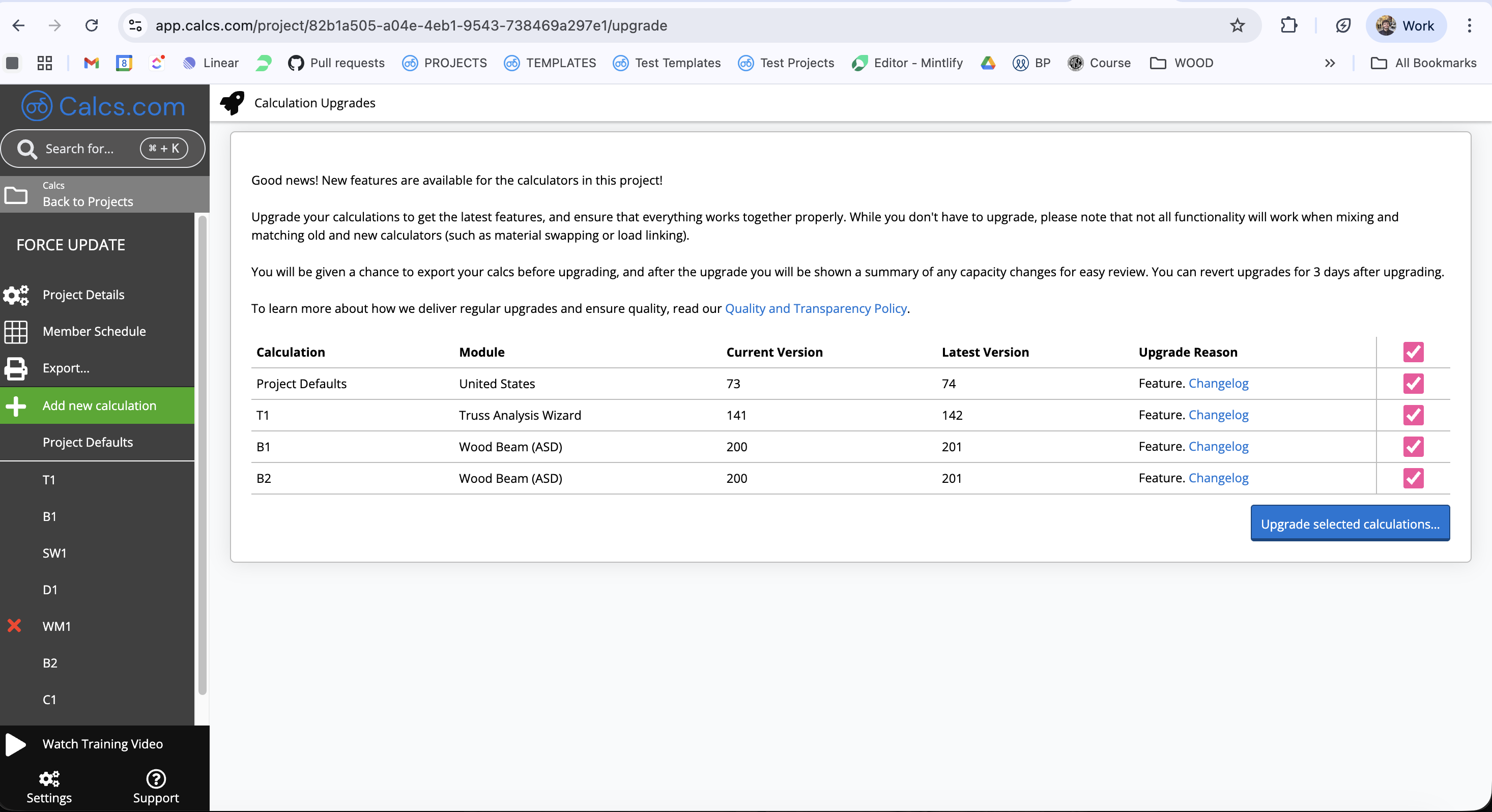
6
Export Previous Version and Upgrade
After selecting your calculators, a final window will appear. We recommend clicking Export and Upgrade so that you have a PDF record of the previous calculation version.
7
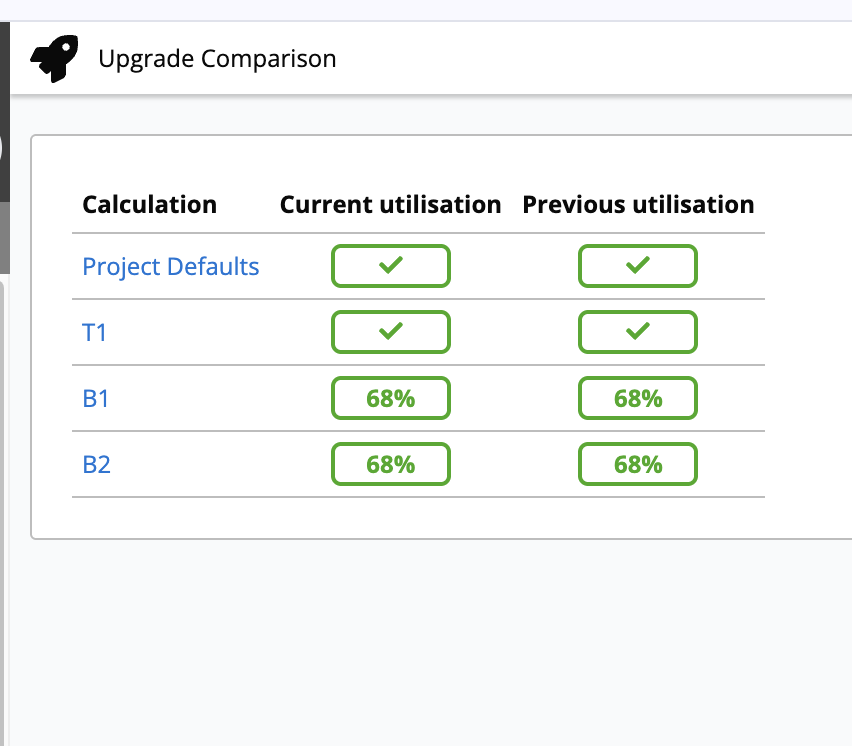
Compare Results and Utilization
Once the upgrade is complete, a Compare Results button will appear on the Project Details page.