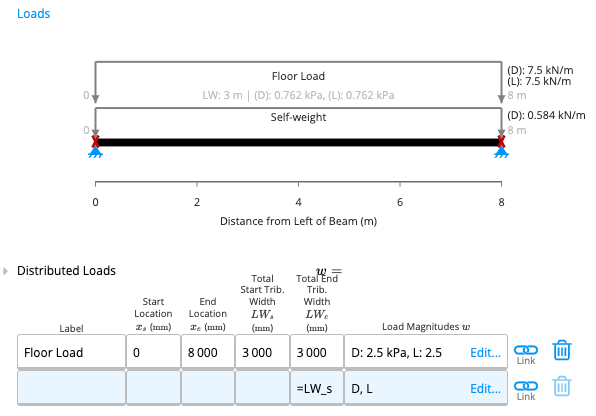
 This article will discuss the input parameters in the Distributed Loads table and gives some worked examples on how to input distributed loads into Calcs.com for structural design applications.
Input Parameters
Understanding Tributary Width
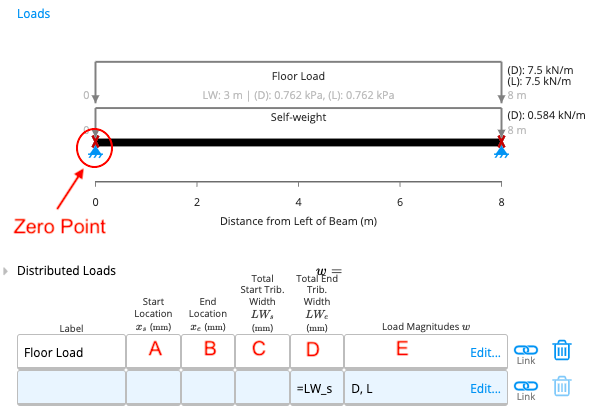
Every structural element has an area from which it obtains its load. As with any other area, this can also be expressed as a product of length and width. The length of this area is usually either the length of the element itself or the length of the distributed load (B-A from the table). Tributary width is simply the width of this area. To better illustrate this concept, consider a floor that is supported by members spaced ‘s’ mm apart.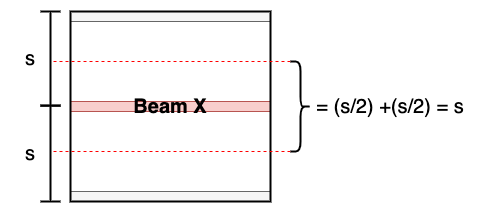
Key Concept: For most cases, the tributary width is the same as member spacing.
- The starting and ending tributary widths will be different
- You’ll need to enter different values for Total Start Tributary Width and Total End Tributary Width
Load Magnitudes
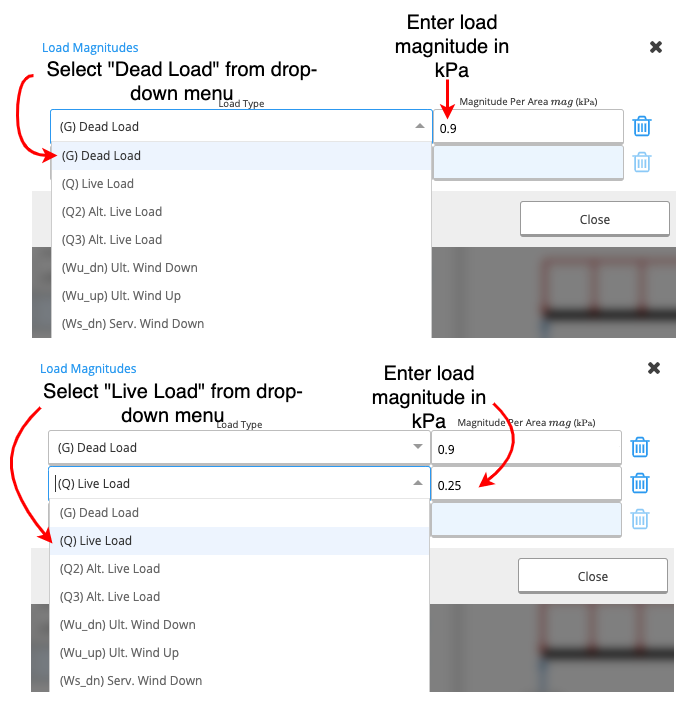
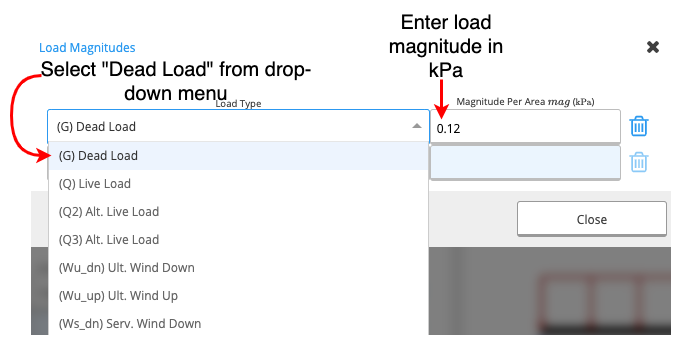
When you click on the Load Magnitudes cell, a new table will appear (see below).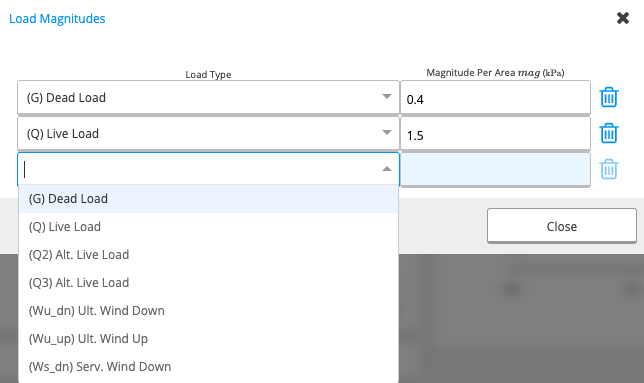
- First Column: A drop-down menu from which you can choose your load type.
- Second Column: You can input the magnitude of the load in kilopascals (kPa).
Examples
Example 1
Task
Input a live load of 1.5kPa on a floor joist with a member spacing of 450mm.Method
1
Set the Range
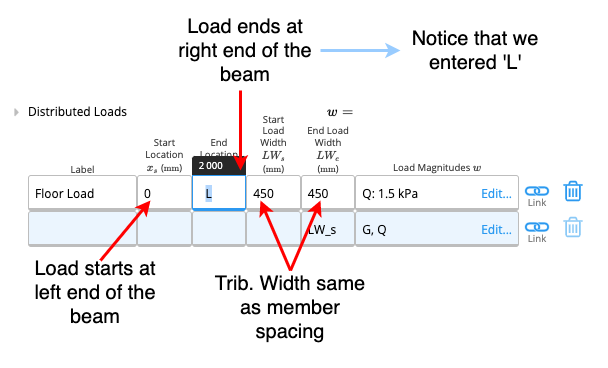
Enter 0 for Start Location and L for End Location to apply the load to the full beam.
2
Define Tributary Width
Input the member spacing (450mm) into both the Start and End Tributary Width cells.
3
Apply Load Magnitude
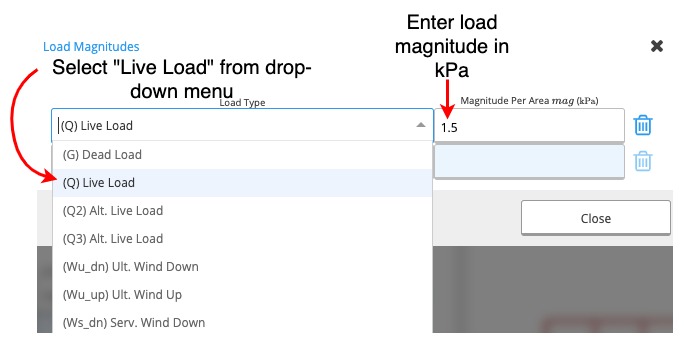
Click the Load Magnitudes cell, select Live Load from the dropdown, and enter 1.5 in the magnitude field.
Example 2
Task
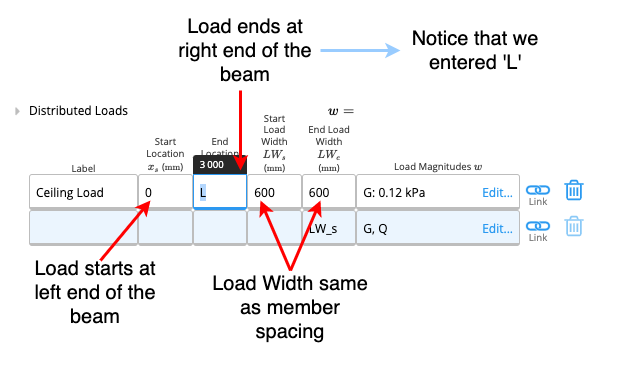
Input a dead load of 0.12kPa on a ceiling joist with a member spacing of 600mm.Method
1
Set the Range
Enter 0 for Start Location and L for End Location to apply the load to the full beam.
2
Define Tributary Width
Input the member spacing (600mm) into both the Start and End Tributary Width cells.
3
Apply Load Magnitude
Click the Load Magnitudes cell, select Dead Load from the dropdown, and enter 0.12 in the magnitude field.
Example 3
Task
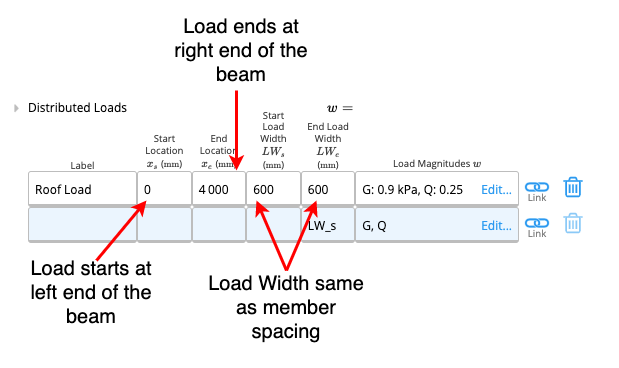
Input a live load of 0.25kPa and a dead load of 0.9kPa on a rafter with 600mm member spacing.Method
1
Set the Range
Enter 0 for Start Location and L for End Location to apply the load to the full beam.
2
Define Tributary Width
Input the member spacing (600mm) into both the Start and End Tributary Width cells.
3
Apply Multiple Load Magnitudes
Click the Load Magnitudes cell to open the load table. Add two rows:
- Select Live Load and enter 0.25 in the magnitude field
- Select Dead Load and enter 0.9 in the magnitude field